Server Operations Manual
Thank you for hosting your own ChatSpace Hub. This document guides you through installation, networking, and security protocols to ensure a stable environment for your community.
Initial Setup & Requirements
System Requirements
- OS: Windows 8/10/11, Linux (Ubuntu/Debian). Note MacOS coming soon.
- RAM: 8GB Minimum System RAM
- INTERNET UPLOAD: At least 15 mbp/s for 150+ chatters
- Knowledge: Basic server concepts (helpful but not essential)
How to Run
- Double-click the ChatSpace Server.exe file.
- Right click EXE & go to properties & unblock. Please note Server may take up to 30 seconds to open as it generates Files.
- Wait for initialization (generates serversettings.txt & Files).
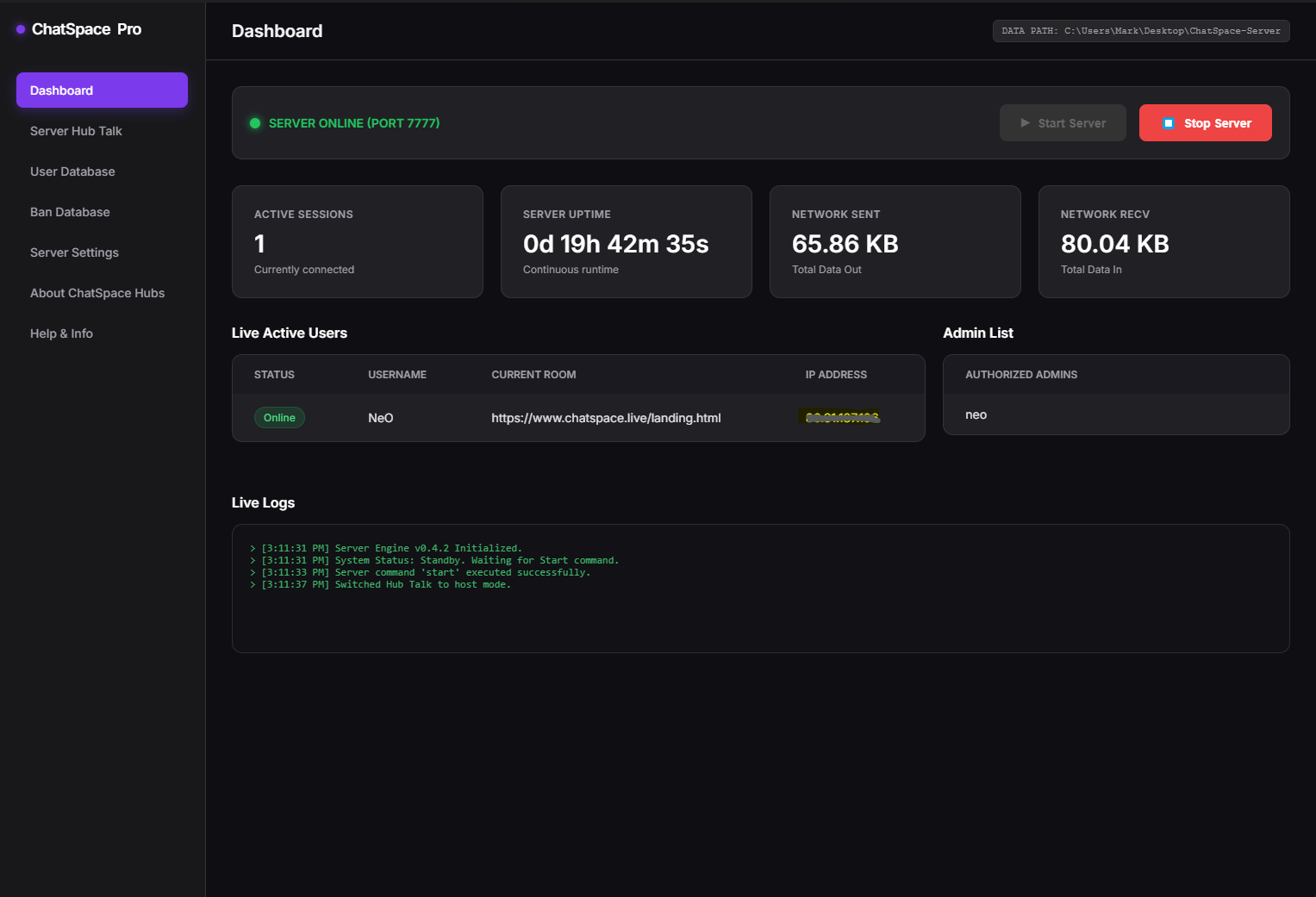
- Start Server and the console will confirm when the server is ONLINE.
Networking & Port Forwarding
For users outside your local WiFi/Network to join, you MUST forward the server port through your router's firewall. Socket.io requires a stable TCP connection.
Windows Firewall Quick-Unblock
If your local Windows Firewall is blocking Port 7777, run this command in Command Prompt (Admin):
How to Forward (Router)
LOCAL IP: Open Command Prompt, type ipconfig (Use IPv4).
PUBLIC IP: Visit www.whatismyip.com. Give this IP to your users.
SERVICES TO MASK YOUR IP: Visit https://www.noip.com/.
Dashboard & Interface
Control Panel Status
- GREEN (ONLINE): Everything is working perfectly.
- RED (OFFLINE): The server is stopped.
- RED (CONNECTION LOST): UI cannot talk to background service.
Live Management
Incoming Pings: Lets your server let other servers know it's online.
Active Users: Right-click any user in the list to Kick or Ban instantly.
GIPHY API Integration
Enable GIF support in chat:
- Get key at GIPHY Support
- Paste key into Server Settings Gif box
- Settings are automatically saved!
Server Configuration Detailed
The Server Settings tab in your dashboard allows you to customize the behavior, visuals, and security of your hub. Changes are saved to serversettings.txt automatically.
Identity & Network
Visuals & Physics
Note: These settings update on connected clients in real-time.
Security & Access
Media & Features
Troubleshooting (F.A.Q.)
FIX: usually caused by an IPv6 conflict or Database lock.
- Ensure no other app uses Port 7777.
- Check admins.txt for corruption. Delete to regenerate.
- Restart the application.
FIX: This is almost always a Firewall/Router issue.
- Double-check Port Forwarding (7777 TCP/UPD).
- Run the Firewall Quick-Unblock command in Section 2.
- Windows Firewall: "Allow" Chatspace Server.exe on Public networks.
FIX: Backend engine is under load or SQLite is performing a large write. Wait 10 seconds. If it persists, restart.
FIX: Ensure 'Enable File Sharing' is checked in Settings. The Sharp imaging engine needs a moment to process large files.
Security & Moderation
Hardware Banning
ChatSpace Pro supports MAC Address banning. If a user bypasses IP bans via VPN, use the "Ban Complex" option in the Dashboard to lock their Hardware ID.
Strict IP Mode
Enable this in settings to block common VPN/Proxy IP ranges from connecting to your hub entirely.
Maintenance Mode
Use while doing upgrades. Only users listed in admins.txt can log in.
Virus Safety & Integrity Assurance
At ChatSpace, we prioritize the cryptographic integrity of our software. We understand that server-side executables often trigger scrutiny, and we maintain full transparency regarding our security pipeline.
Multi-Stage Verification
Every build undergoes a rigorous 4-step sanitization process before release:
- Static Analysis: Code scanned for malicious patterns.
- Sandbox Testing: Executable run in isolation to monitor registry.
- VirusTotal Submission: Verified against 70+ antivirus engines.
- SHA-256 Hashing: Every release includes a unique hash.
Understanding False Positives
Because ChatSpace Server.exe acts as a network listener, some heuristic engines may flag it as a "Generic Risk." This is common for:
- Software that creates automated network listeners.
- Unsigned executables from independent developers.
- Applications that generate local database files (SQLite).